Most people don’t decide to book on a page called “Book now”. They decide while reading about a service, while looking at your prices, or when they click a link you sent them. The best place for a booking form is often right there.
Since version 1.4.0, Bookira lets you place a booking form anywhere: with the Bookira Booking block in the block editor, the widget in Elementor, or the [bookira_booking] shortcode. Here are five ways to use that.
1. One booking page for everything
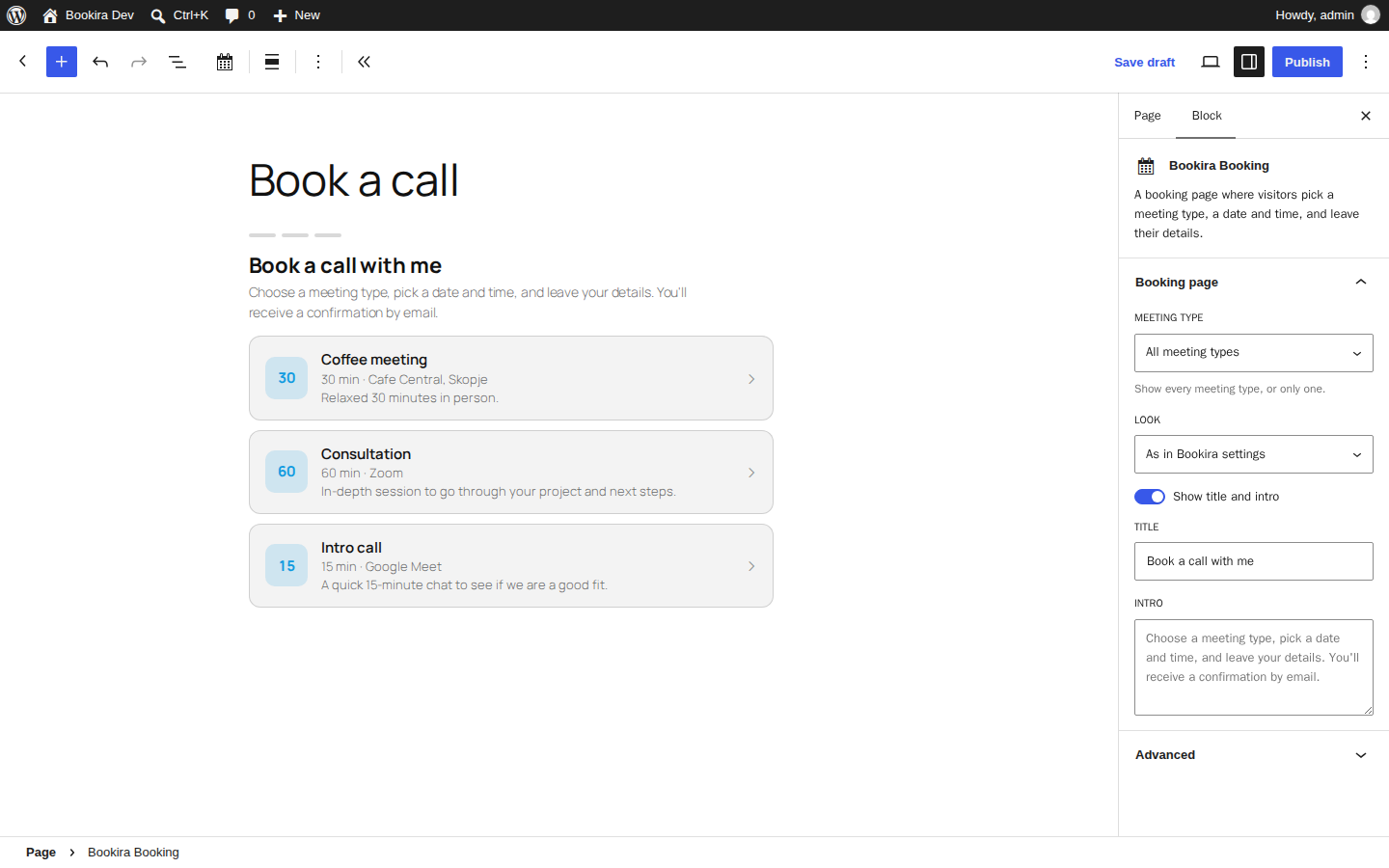
The classic setup: one page, all your meeting types, and the client picks. Add the Bookira Booking block to a page and leave Meeting type on “All meeting types”.
Best for: a “Book a call” link in your menu, email signature or social profile bio, when people already know they want to talk to you.
2. A separate page for each service
Pick one meeting type in the block’s Meeting type setting, and the page shows only that one. Make a “Book a consultation” page and a separate “Book an intro call” page, each with its own text around it.
With the shortcode, it’s [bookira_booking type="consultation"], using the meeting type’s slug or ID.
Best for: links in ads, newsletters and proposals. Someone who clicked “Book a free intro call” shouldn’t have to look through your other services first.
A small safety net: if you later delete or deactivate that meeting type, the page falls back to showing all your meeting types instead of an empty form.
3. A booking form under every service
Several booking forms can sit on the same page, each working on its own. Put a short description of each service in a column, and the booking form for that service right below it.
Clients read, decide and book without leaving the page. If someone opens the calendar for one service, the others stay as they were.
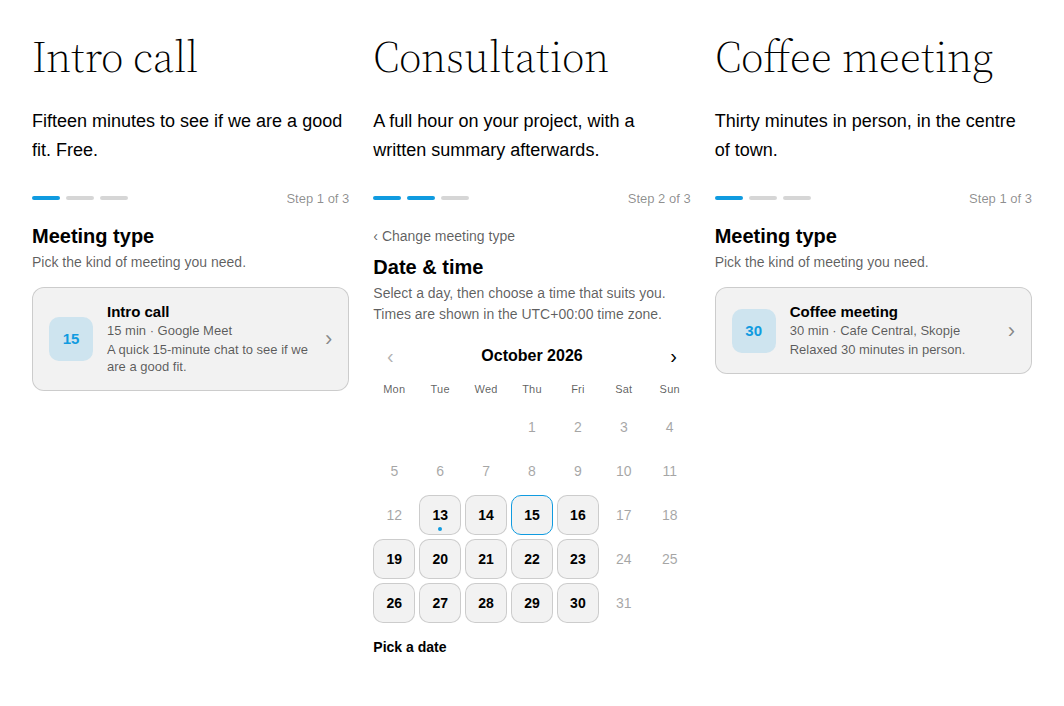
To build it: add a Columns block, put a heading and a paragraph in each column, then a Bookira Booking block set to that column’s meeting type. Turn off Show title and intro, because your own heading already says what it is.
4. Make it look like your brand
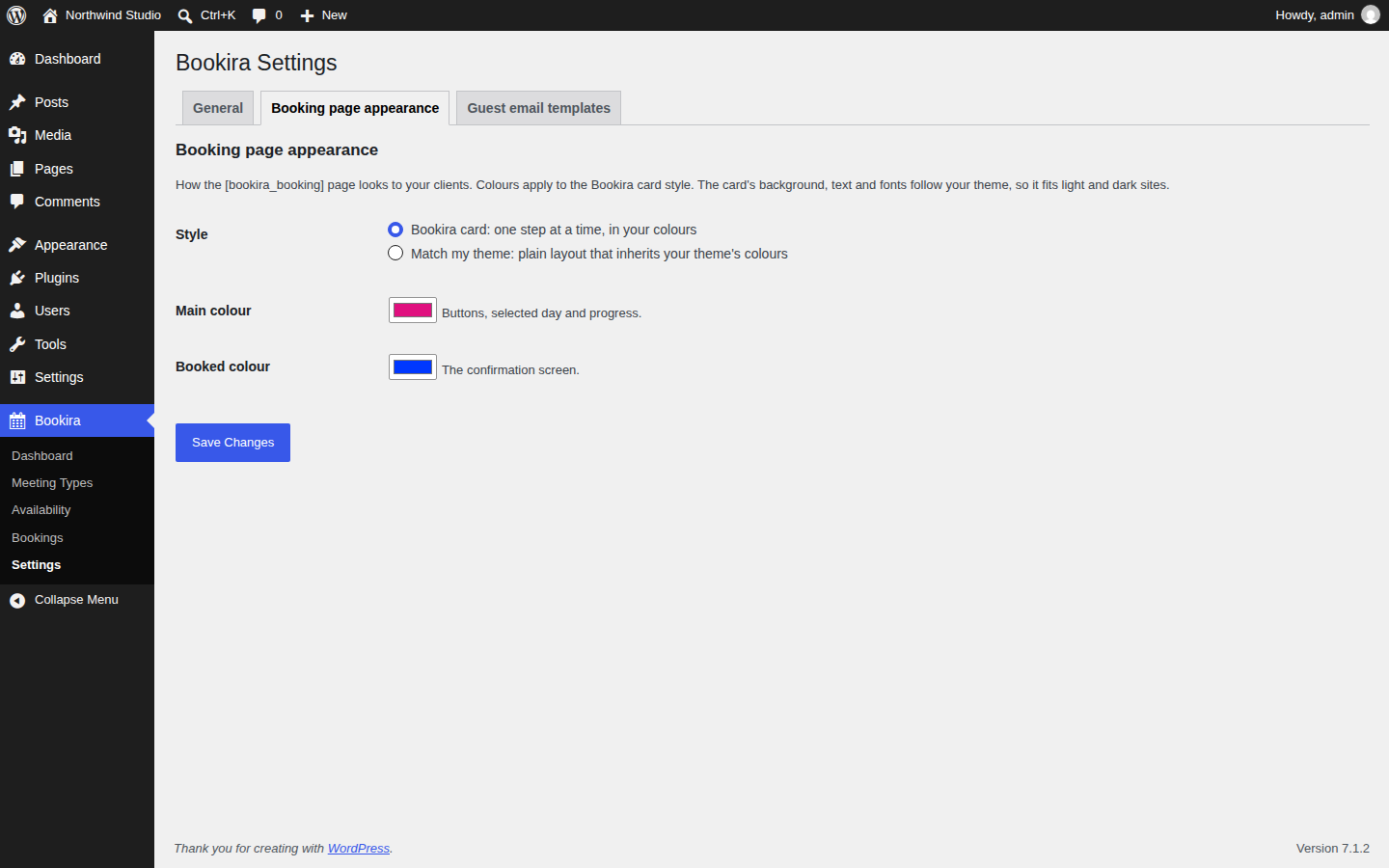
Under Bookira → Settings → Booking page appearance you choose between two looks:
- Bookira card: one step at a time with a progress bar, in your own main colour (buttons, selected day, progress) and booked colour (the confirmation screen). The card’s background and text follow your theme, so it works on light and dark sites.
- Match my theme: a plain layout that takes everything from your theme, for sites where the booking form should blend in completely.
Both use your theme’s fonts. You can also change the look on a single page with the block’s Look setting, or with style="theme" or style="card" in the shortcode.
5. Say it in your own words
“Book a meeting” is a fine default, but it isn’t your voice. In the block, change the Title and Intro, for example “Let’s talk about your project” and “Pick a time and you’ll get a calendar invite.” Or turn them off.
The same goes for what happens after the booking. Under Bookira → Settings → Guest email templates you can rewrite all five client emails: request received, confirmed, rescheduled, canceled and the reminder. Placeholders like {guest_name}, {date}, {time} and {location} are filled in for you.
Which one should you use?
| Your situation | Setup |
|---|---|
| People already know they want to talk to you | 1. One page for everything |
| You send people to one specific offer | 2. A page per service |
| Clients compare your services before booking | 3. A form under every service |
| Your site has a strong visual identity | 4. Your colours, or match your theme |
| Always | 5. Your own words |
They combine well. A common mix is a services page with a form under each service, plus a general “Book a call” page in the menu.
What Bookira doesn’t do
To save you a disappointing install: there are no online payments, no two-way Google Calendar sync and no team scheduling. Bookira is for one person taking one-on-one bookings. If you’re new to it, start with the step-by-step setup guide, or the Elementor guide if you build with Elementor.
Get Bookira free on WordPress.org