If people currently book time with you by email (“does Tuesday at 3 work?”), a booking page on your own site saves you that back-and-forth. This guide uses Bookira, a free plugin we make for people who work one-on-one. The same steps apply, more or less, to most booking plugins.
What you need: a WordPress site (6.0 or newer) where you can install plugins, and about ten minutes. You don't need any code.
Step 1: Install the plugin
- In your WordPress admin, go to Plugins → Add New Plugin.
- Search for Bookira, click Install Now, then Activate.
A new Bookira menu appears in the sidebar, with Dashboard, Meeting Types, Availability, Bookings and Settings.
Step 2: Create your meeting types
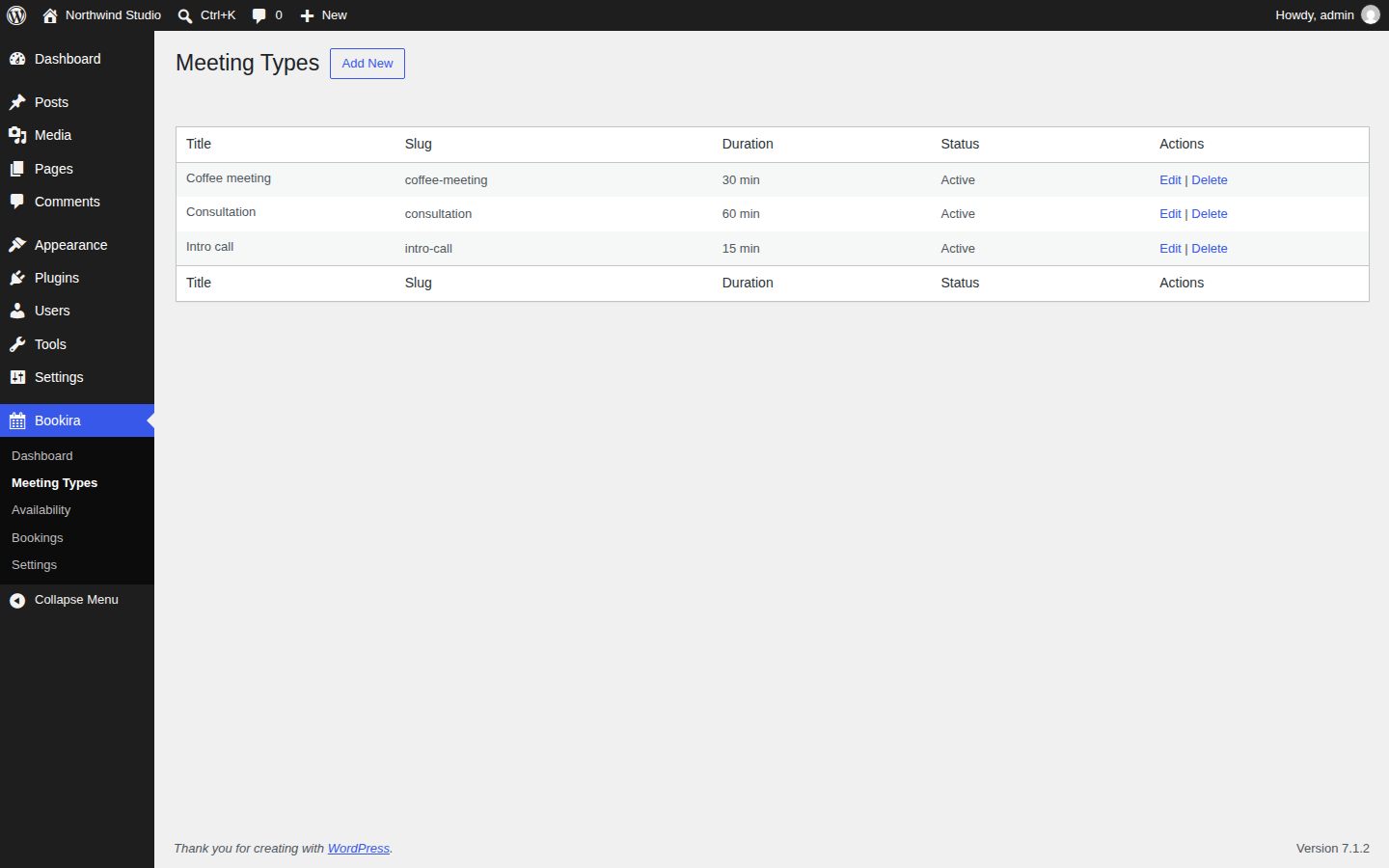
A meeting type is something a client can book: a 15-minute intro call, a 60-minute consultation, a coffee meeting. Go to Bookira → Meeting Types → Add New and fill in:
- Title: what the client sees, for example “Intro call”.
- Duration (minutes): how long the meeting is. This also sets the slot length, so a 30-minute type offers 9:00, 9:30, 10:00 and so on.
- Location: a video link, a phone number or an address. It's included in the confirmation email and the calendar invite.
- Description: one line on what the meeting is for.
Start with one or two types. You can always add more later.
Step 3: Set your weekly availability
Go to Bookira → Availability. For each day, tick Enabled and set your start and end time. A new install is set to Monday to Friday, 9:00 to 17:00.
Clients only see times that are genuinely free. Bookira hides slots that are already pending or confirmed and slots that have already passed.
Check Settings → General → Timezone in WordPress first. Bookira uses your site's time zone and shows it to clients on the booking page.
Step 4: Add the booking page
- Create a new page, for example “Book a call”.
- Add a Shortcode block and paste
[bookira_booking]. - Publish the page and open it.
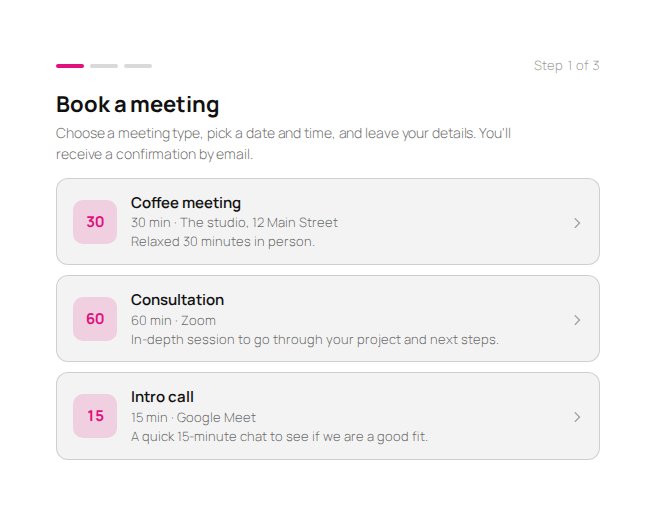
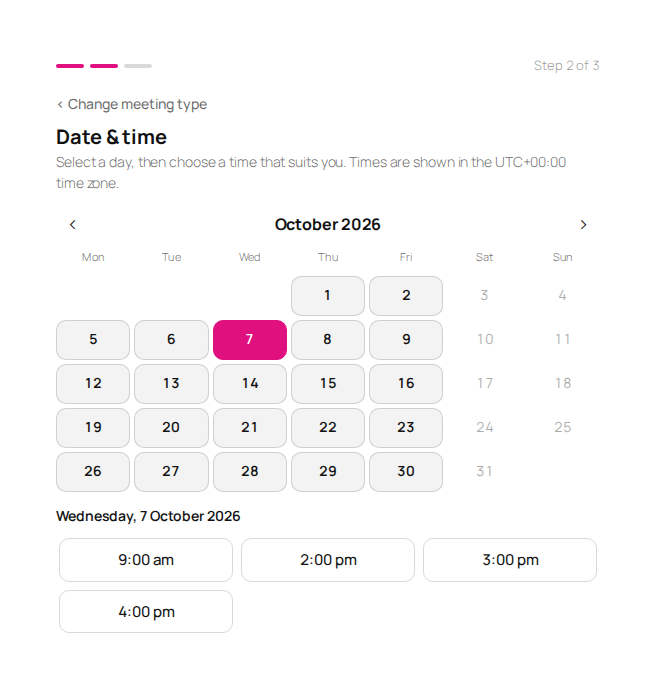
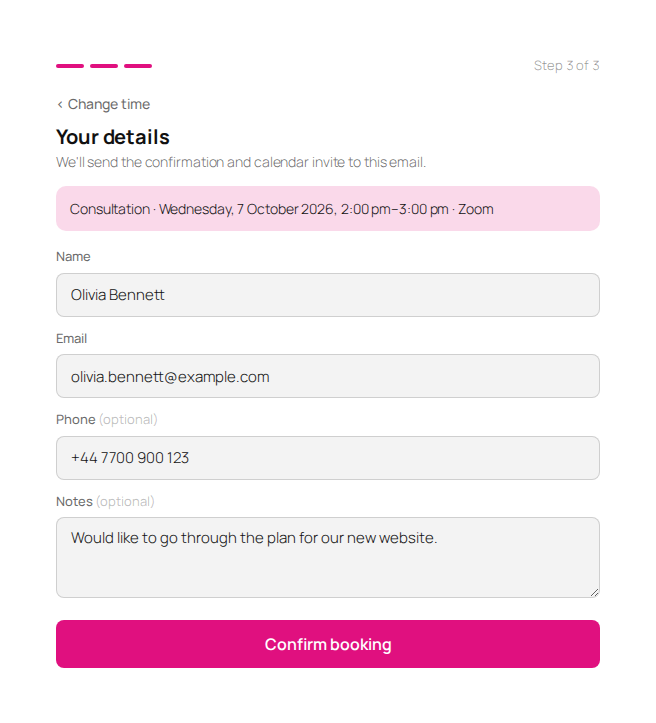
Your clients now go through three short steps: pick a meeting type, pick a date and time, and enter their name and email. They don't need to create an account.
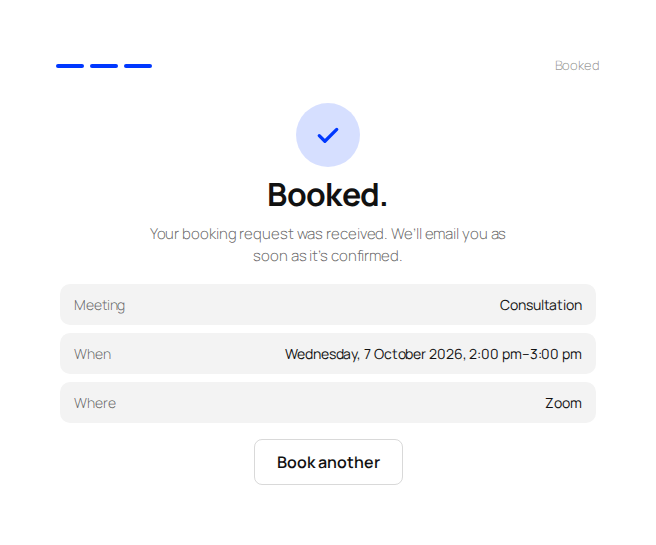
Want a different heading? Use [bookira_booking title="Book a call" subtitle="Pick a time that suits you."]. To make the booking page match your theme's own look instead of the Bookira card, add style="theme", or change it for the whole site under Bookira → Settings → Booking page appearance, where you can also pick your two colours.
Step 5: Confirm bookings from the dashboard
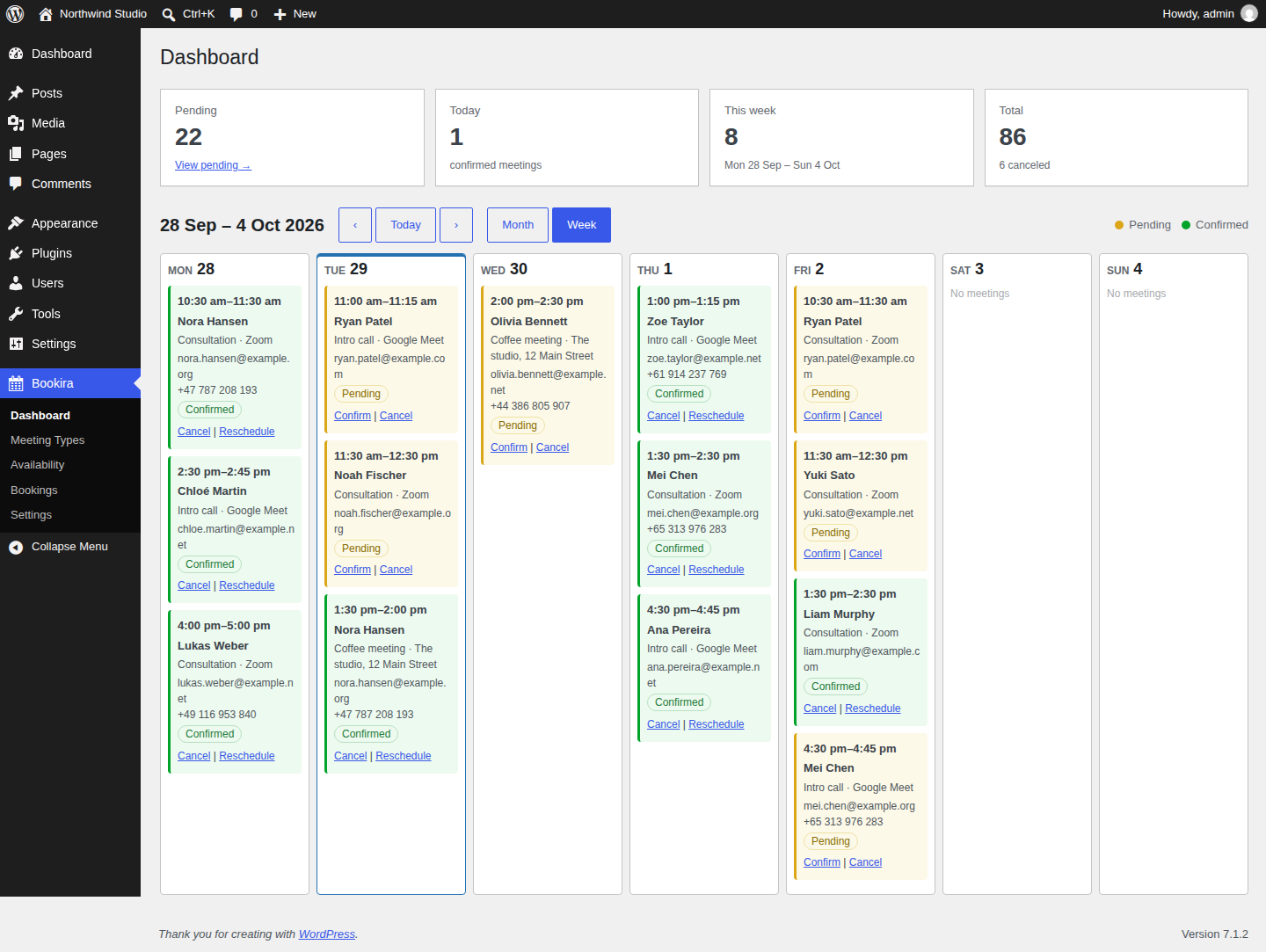
New bookings arrive as pending, and you get an email for each one. Open Bookira → Dashboard to see them in a month or week calendar, and click Confirm, Cancel or Reschedule right on the booking.
When you confirm, your client receives a confirmation email with a calendar invite (.ics) attached, so the meeting lands in their Google Calendar, Outlook or Apple Calendar with one click.
Step 6: Set up emails and reminders
Under Bookira → Settings:
- From name and From email: who the emails come from. Use an address on your own domain.
- Reminder: send a reminder to you and your client 15 minutes, 30 minutes, 1 hour, 2 hours or 24 hours before each confirmed meeting, or turn reminders off.
- Guest email templates: change the wording of every email. Placeholders like
{meeting_title},{date}and{time}are filled in automatically.
Two things worth checking before you share the link
1. Do your emails actually arrive?
Bookira sends email through WordPress. Many hosts deliver WordPress mail poorly, so it lands in spam or never arrives. Make a test booking with your own email address. If nothing arrives, install an SMTP plugin such as WP Mail SMTP or FluentSMTP and connect it to your email provider.
2. Will reminders go out on time?
Reminders run on WP-Cron, which only fires when someone visits your site. On a quiet site, a reminder can go out late. Ask your host to set up a real cron job that calls wp-cron.php every five minutes. Most hosts have a one-click option for this.
What this setup doesn't cover
Bookira is deliberately small. It doesn't take payments, it doesn't sync with Google Calendar both ways, and it's built for one person rather than a team. If you need any of those, read our comparison of booking options for WordPress first.
Done
Put the link to your booking page in your email signature, on your contact page and in your social profiles, and the “which day works for you?” emails stop.
Get Bookira free on WordPress.org