Every booking plugin depends on email: the confirmation to your client, the notice to you, the reminder before the meeting. When those emails go missing, people miss meetings and the booking page looks broken, even though the booking itself was saved.
The good news: the cause is usually the same, and so is the fix. This guide uses Bookira for the examples, but every step applies to any WordPress plugin that sends email.
Why WordPress email goes missing
By default, WordPress sends email with PHP’s built-in mail function on your web server. That mail usually has no proof that it really comes from your domain. It often goes out as wordpress@yourdomain.com, from a server that is not listed as allowed to send for your domain.
Gmail, Outlook and Yahoo treat that kind of mail as suspicious. Some of it lands in spam, some is silently dropped, and some hosts block the mail function completely. Gmail and Yahoo have also required sender authentication since 2024, so mail that used to get through may no longer arrive.
Step 1: Find out where the emails actually go
Before you change anything, check the obvious:
- Your own notifications go to the Administration Email Address under Settings → General in WordPress. Make sure that is an inbox you actually read.
- Make a test booking on your own booking page with a personal Gmail or Outlook address, then check the inbox and the spam folder of both addresses.
- In Bookira, the booking appears under Bookira → Bookings even if no email arrived. If it’s there, the booking worked and only the email failed.
If the test email is in spam, or missing, go on to step 2.
Step 2: Send email through SMTP
The fix that solves most cases: stop using the server’s mail function and send through a real mail service instead. An SMTP plugin does this for every plugin on your site at once, so you set it up one time.
Free, well-maintained options on WordPress.org include WP Mail SMTP, FluentSMTP and Post SMTP. Any of them works. Then connect it to one of these:
- The email account from your host, such as
hello@yourdomain.com. It’s simple and fine for a few emails a day. - A transactional email service such as Brevo, Mailgun, Postmark, SendGrid or Amazon SES. These are built for this kind of mail, deliver more reliably and show a log of every email. Most have a free tier that’s plenty for a booking page.
- Google Workspace or Microsoft 365, if you already use them for your email.
Every SMTP plugin has a Send test email screen. Use it, and don’t continue until the test arrives in your inbox (not spam).
Step 3: Add SPF and DKIM to your domain
SPF and DKIM are two DNS records that tell receiving mail servers “this service is allowed to send email for my domain”. Without them, even SMTP mail can land in spam.
- Your email service (or your host) shows the exact records to add, usually under Domains, Senders or Authentication.
- Add them where your domain’s DNS is managed: your registrar, your host’s cPanel (Zone Editor) or a service like Cloudflare.
- Wait for the service to show the domain as verified. That can take from a few minutes to a few hours.
A DMARC record is the third piece. A simple one that only monitors, like v=DMARC1; p=none;, is a safe start.
One domain should have only one SPF record. If you already have one, add the new service to it instead of creating a second.
Step 4: Use a From address on your own domain
Emails should come from an address on the domain you just authenticated, not from a Gmail address and not from wordpress@. Your clients also see this name and address, so make it recognisable.
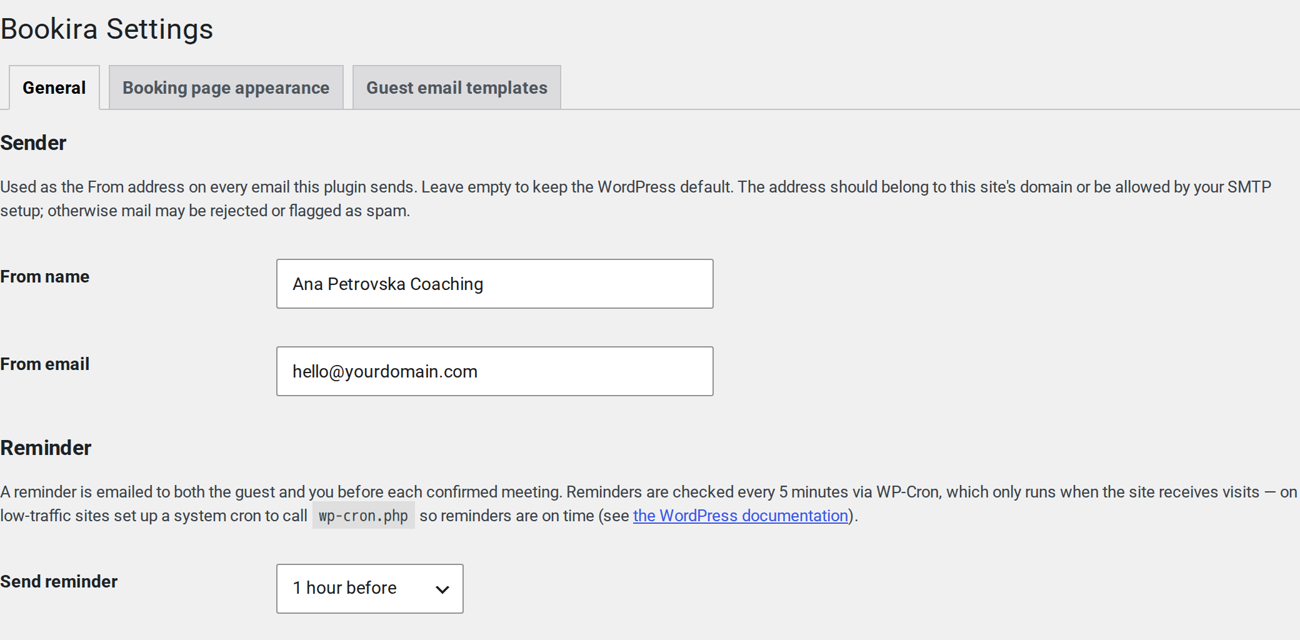
In Bookira, set it under Bookira → Settings → General → Sender. Leave the fields empty to keep the WordPress default, or set your own From name and From email. The address must be one your SMTP setup is allowed to send from.
Step 5: Make reminders arrive on time
Reminders are different from confirmations. A confirmation is sent the moment something happens. A reminder has to be sent at a set time, and WordPress does that with WP-Cron.
The catch: WP-Cron only runs when someone visits your site. On a quiet site with no visitors at night, a reminder for a 9:00 meeting can go out hours late, or after the meeting. Bookira checks for due reminders every 5 minutes, but only when WP-Cron actually runs.
The fix is a real cron job that calls WP-Cron on a schedule:
- In cPanel, open Cron Jobs (other hosts call it Scheduled tasks) and add a job that runs every 5 minutes:
*/5 * * * * wget -q -O - "https://yourdomain.com/wp-cron.php?doing_wp_cron" >/dev/null 2>&1 - Optionally, add this line to
wp-config.phpso visitors no longer trigger WP-Cron and only your cron job does:
Only do this once the cron job works, or scheduled tasks stop on your site.define( 'DISABLE_WP_CRON', true );
To check that it runs, the free WP Crontrol plugin lists all scheduled events. Bookira’s is called bookira_send_reminders and should show a next run within the next few minutes.
Many managed WordPress hosts already run WP-Cron for you. Check your host’s documentation before adding a second job.
Quick checklist
| Problem | Most likely fix |
|---|---|
| You never get booking notices | Check the Administration Email Address, then set up SMTP |
| Clients find the email in spam | SMTP, plus SPF and DKIM on your domain |
| No emails at all | Your host blocks PHP mail. Set up SMTP |
| SMTP test fails | Wrong password, port or From address not allowed by the service |
| Reminders arrive late or never | A real cron job for wp-cron.php |
Set it up once, then forget it
Twenty minutes with SMTP, two DNS records and a cron job fixes email for your whole site, not just bookings: contact forms, password resets and shop orders all benefit too.
New to Bookira? Start with the step-by-step setup guide. It covers meeting types, availability and the booking page, and the email setup above is the last piece.
Get Bookira free on WordPress.org